22
What Your Ping Results Actually Mean — Latency, Jitter and Packet Loss
A 20 ms ping and 8% packet loss is worse than a 90 ms ping and none. Here’s how to read ping output, what each error means, and which number actually matters.
Most people run a ping test, see a number, and have no way to judge whether it is good. The number on its own barely matters — a 20 ms average with 8% packet loss is a far worse connection than a 90 ms average with none.
There are three measurements in a ping result, and they fail in different ways.
What Ping Actually Does
Ping sends an ICMP echo request to a host and waits for an echo reply. The time between the two is the round-trip time — out and back, not one way.
That matters when you compare numbers. A server 200 ms away is 100 ms in each direction, and the figure most services quote is the round trip.
ICMP is a diagnostic protocol, not the one your traffic uses. This has one consequence worth knowing up front: many servers deliberately ignore ping, so a host that does not reply is not necessarily down.
The Three Numbers That Matter
Latency — how long one round trip takes
This is the number everyone looks at. Roughly:
- Under 30 ms — excellent. Competitive gaming territory
- 30–60 ms — very good. Nothing you will notice
- 60–100 ms — fine for browsing, video calls and most games
- 100–200 ms — noticeable in fast games and in conversation on calls; browsing is unaffected
- Over 200 ms — genuinely sluggish, though not unusual on satellite or intercontinental routes
Distance sets a hard floor. Light in fibre travels roughly 200 km per millisecond, so a round trip from Karachi to a server in Virginia cannot go below about 120 ms no matter what you pay for. If you are testing a distant server, high latency may simply be geography.
Jitter — how much the latency varies
Jitter is the variation between consecutive pings. A connection averaging 40 ms where every reply is between 38 and 42 ms is stable. One averaging 40 ms where replies swing between 12 ms and 180 ms is not, even though the average looks identical.
For voice and video calls, jitter matters more than latency. Audio is reassembled from packets arriving in order at a steady rate. Consistent 100 ms is handled smoothly. Latency jumping between 20 ms and 200 ms produces the robotic, choppy audio everyone recognises, because the buffer keeps running empty.
This is why a connection can “test fine” and still be unusable on calls.
Packet loss — how many replies never came back
Any sustained packet loss is a problem. Unlike latency, there is no acceptable band:
- 0% — what you want
- 1–2% — noticeable on calls and in games
- Over 5% — something is wrong
Loss is worse than it sounds because TCP retransmits what goes missing. A 2% loss rate doesn’t make things 2% slower — it can halve your throughput, since the protocol interprets loss as congestion and backs off.
Reading the Errors
Request timed out
No reply arrived within the wait period. Three possible reasons, and they are not equivalent:
- The host is blocking ICMP. Extremely common. Cloudflare-fronted sites, most corporate firewalls, and many cloud instances drop ping by default. The server is perfectly healthy
- The host is genuinely unreachable
- The reply was lost on the way back
A timeout alone proves nothing. If a web server times out on ping but its site loads, you have your answer — check whether the port responds instead of whether the host pings.
Destination host unreachable
Different error, different meaning. This comes from a router, not the destination — a device along the path is telling you it has no route to that address.
Typically a local problem: wrong subnet mask, missing default gateway, or a device on the wrong network segment. The message usually names which router replied, which tells you how far your packet got.
100% packet loss
Every request went out; nothing came back. Same three causes as a timeout, but conclusive across the whole test rather than a single packet.
If other hosts ping normally and this one is at 100%, the problem is specific to that host or the route to it. If everything is at 100%, the problem is yours — adapter, router, or the connection itself.
TTL expired in transit
Each packet carries a Time To Live that decreases by one at every hop. When it reaches zero, the router discards the packet and reports back.
Usually this means a routing loop — packets circling between routers until the TTL runs out. Rare on the public internet, more common inside misconfigured corporate networks.
Ping: transmit failed. General failure
A Windows-specific error, and the packet never left your machine. Network adapter, driver, or IP stack. Nothing to do with the remote host.
Temporary failure in name resolution / Ping request could not find host
Not a network failure at all — DNS. The hostname never resolved to an address, so nothing was sent. Ping an IP directly to confirm: if 8.8.8.8 replies but google.com does not, your connectivity is fine and your resolver is the problem. DNS errors explained covers what each DNS failure means.
Latency Is Not Bandwidth
These get conflated constantly, and conflating them leads people to buy the wrong fix.
Bandwidth is how much data fits through the connection per second. Latency is how long one packet takes to arrive.
Upgrading from 50 Mbps to 500 Mbps does nothing for latency. Your packets do not travel faster; more of them travel at once. A fibre connection and a satellite connection can offer identical bandwidth while the satellite link has twenty times the latency.
So: large downloads and 4K streaming need bandwidth. Gaming, video calls, SSH sessions and remote desktop need low latency and low jitter. A connection can be excellent at one and poor at the other.
What Actually Causes High Latency
In rough order of how often it turns out to be the cause:
Wi-Fi. The single most common source of jitter on home connections. Interference, distance from the router, and channel congestion all add variable delay. Before blaming your ISP, test on a cable — if the problem disappears, it was never the connection.
Bufferbloat. Oversized buffers in routers and modems queue packets rather than dropping them, which looks helpful but adds latency under load. The symptom is unmistakable: ping is fine when idle, and climbs to several hundred milliseconds the moment someone starts a large download. Routers with Smart Queue Management (SQM) fix this.
Distance and routing. Sometimes traffic takes an indirect path — Karachi to Singapore to Frankfurt to reach a London server. A traceroute shows where the time is actually being added.
Congestion. Peak evening hours on an oversubscribed local network.
The server itself. If one host is slow and everything else is fast, the problem is at the far end, not yours.
A Practical Order of Checks
- Ping something close first — your router’s own IP. High latency here means the problem is inside your home, before the internet is involved
- Ping a reliable public host such as 1.1.1.1. This separates your connection from the destination
- Ping the host you actually care about and compare. If step 2 is fine and step 3 is not, the problem is that host or the route to it
- Test on a cable if you are on Wi-Fi. This alone resolves a large share of jitter complaints
- Test under load — run a ping while downloading something large. Latency that climbs sharply is bufferbloat
- Run a traceroute if latency is high but consistent, to see which hop adds the delay
For steps 2 and 3, a ping test run from outside your own network is useful as a second opinion — it tells you how the host responds to someone who is not on your connection, which separates a slow host from a slow link.
If the host does not respond to ping at all, that is not the end of the diagnosis. Check whether the service itself answers with an open port check, since a server that ignores ICMP will still accept connections on its actual ports. Connection refused vs connection timed out explains what each of those results means.
Frequently Asked Questions
What is a good ping?
Under 60 ms is good for almost everything. Under 30 ms is excellent. Over 100 ms is noticeable in fast games and on calls but fine for browsing. Judge it against the distance to the server — some latency is physics, not a fault.
Why is my ping high but my internet fast?
Because they measure different things. Bandwidth is how much data flows per second; latency is how long one packet takes. A connection can have plenty of the first and still be poor at the second, which is why gaming feels bad on a connection that downloads quickly.
Why does a server not reply to ping?
Most likely it blocks ICMP deliberately — a very common security configuration. The server is usually fine. Test whether its actual port responds instead.
How do I lower my ping?
Use a cable instead of Wi-Fi, pick a server geographically closer to you, address bufferbloat with a router that supports SQM, and avoid peak congestion. You cannot go below the floor set by distance.
Is packet loss or high latency worse?
Packet loss, almost always. Consistent high latency is predictable, and applications adapt. Loss causes retransmissions, stalls, and dropouts, and even small percentages hurt throughput badly.
Why does my ping jump around?
That is jitter, and on home connections it is usually Wi-Fi interference or bufferbloat. Test on a cable, and test while the connection is under load — if latency climbs sharply during a download, you have found it.
The Short Version
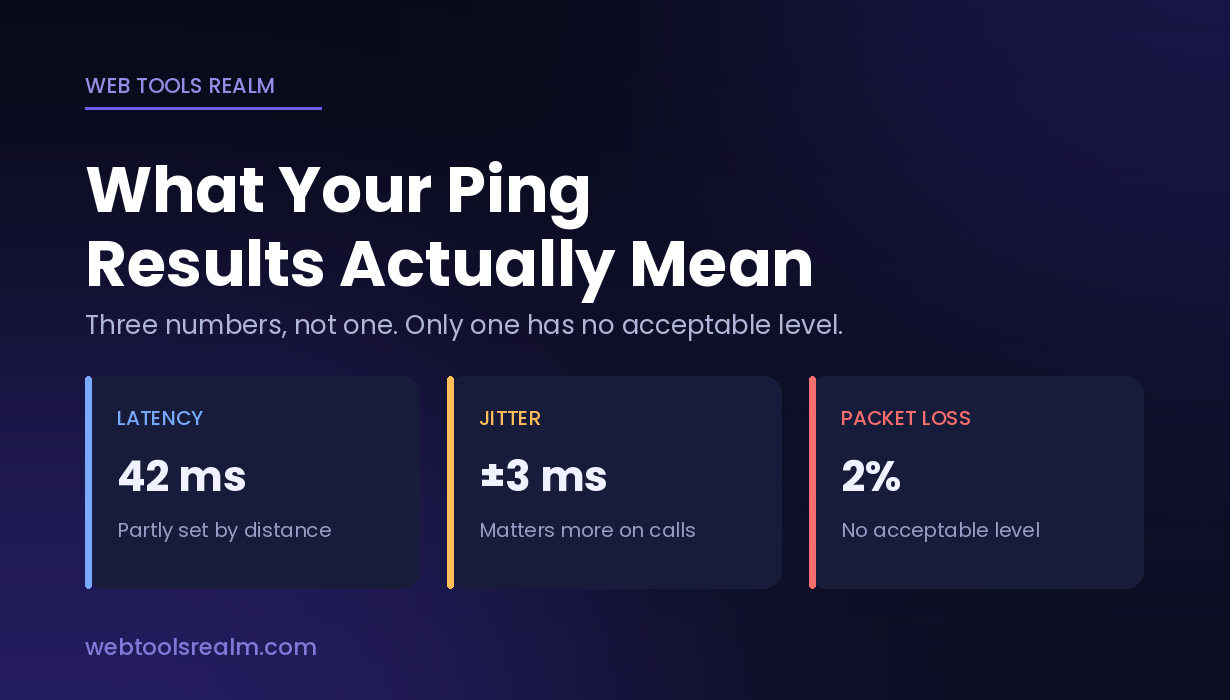
Three numbers, not one. Latency is how long a round trip takes and is partly set by distance you cannot change. Jitter is how much that varies, and it matters more than latency for calls. Packet loss is the one with no acceptable level. Before blaming your connection, test on a cable and test under load — Wi-Fi and bufferbloat account for most complaints, and a host that ignores ping is usually not down at all.
Contact
Missing something?
Feel free to request missing tools or give some feedback using our contact form.
Contact Us