DNS_PROBE_FINISHED_NXDOMAIN: What It Means and How to Fix It
DNS_PROBE_FINISHED_NXDOMAIN means Chrome could not find the domain. Find out whether the problem is with your device or the site, and fix it on Windows, Mac, or Android.
You type an address, press Enter, and Chrome shows “This site can’t be reached” with DNS_PROBE_FINISHED_NXDOMAIN underneath. The page never starts loading.
The error has one precise meaning, but two very different causes. Either the domain really does not exist in DNS, or something on your device or network is giving Chrome the wrong answer. The fix depends entirely on which one you have, and one quick test tells you.
What DNS_PROBE_FINISHED_NXDOMAIN Means
Before Chrome can load a website, it asks a DNS resolver to turn the domain name into an IP address. NXDOMAIN is the resolver’s answer when it believes that name does not exist. “DNS_PROBE_FINISHED” means Chrome ran its own check and confirmed that result.
So the error does not mean the website is down. It means Chrome never found out where the website is. The server could be running perfectly, and you would still see this error if the name cannot be resolved.
The same condition appears with different wording in other browsers. Edge shows the same code. Firefox says “Hmm. We’re having trouble finding that site.” Safari says it “can’t find the server.”
For the DNS side of the story, including why NXDOMAIN answers can stick around after a fix, see NXDOMAIN explained.
First, Find Out Whose Problem It Is
Do these two checks before changing any settings. Together they take less than a minute.
1. Try a different site. If every site fails, the problem is your connection or DNS settings. If only one site fails, keep going.
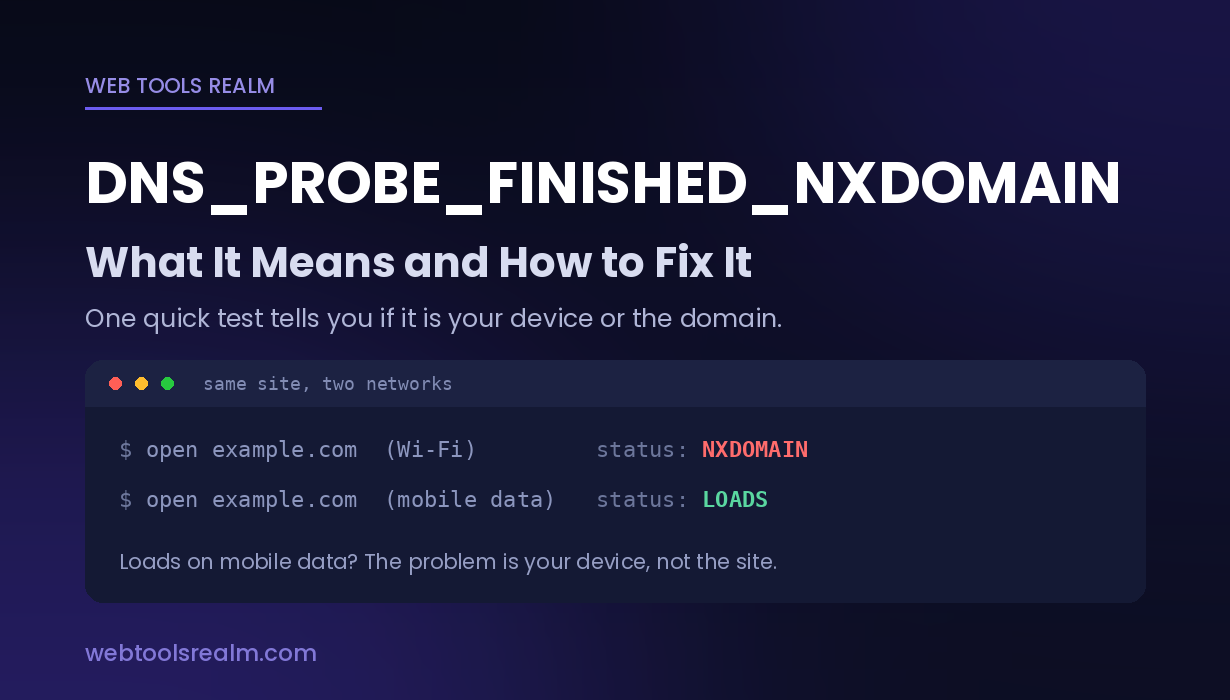
2. Try the same site on a different network. Turn off Wi-Fi on your phone and open the site on mobile data.
- Loads on mobile data: the domain is fine. Something on your device or network is the cause. Go to the fixes for your device below.
- Fails everywhere: the problem is the domain itself. Skip to “When the Problem Is the Domain”.
You can also run the domain through a DNS lookup tool. It queries public DNS servers from outside your network. If the lookup returns an IP address, the domain resolves for the rest of the internet, and the problem is local.
Fixes on Your Own Device
Work through these in order and test after each one. Most cases are solved by the first three.
1. Check the address for typos
A single wrong letter, a missing dot, or “.con” instead of “.com” produces exactly this error, because that name genuinely does not exist.
2. Clear Chrome’s own DNS cache
Chrome keeps a separate DNS cache. Open chrome://net-internals/#dns in the address bar and click Clear host cache. Then open chrome://net-internals/#sockets and click Flush socket pools.
3. Flush your system’s DNS cache
Your operating system caches DNS answers too, including failed ones.
- Windows: open Command Prompt and run ipconfig /flushdns
- macOS: open Terminal and run sudo dscacheutil -flushcache; sudo killall -HUP mDNSResponder
4. Check Chrome’s secure DNS setting
Chrome can send DNS queries to its own chosen provider instead of your system resolver. Go to Settings > Privacy and security > Security > Use secure DNS. If it is set to a custom provider, switch it to your current service provider, or the other way round, and test again.
5. Switch to a public DNS server
If your router or ISP’s resolver is failing, set a public resolver manually in your network adapter settings, such as 1.1.1.1 (Cloudflare) or 8.8.8.8 (Google). If the site loads afterwards, your previous resolver was the cause.
6. Disable VPNs, ad blockers and DNS filters
VPN apps, ad blockers and DNS filtering services can block domains at the DNS level. Some of them answer a blocked domain with NXDOMAIN, which makes the block look like a missing website.
This is the usual explanation when the failing domain is an ad or tracking domain, such as googleadservices.com. Turn off the VPN or blocker temporarily and test. If the site loads, add it to the allowlist instead of leaving protection off.
7. Reset the network stack (Windows)
If the steps above did not help, run these in Command Prompt as administrator, then restart:
ipconfig /release
ipconfig /renew
netsh winsock reset
8. Restart your router
Routers run their own DNS cache. Unplug it for 30 seconds and plug it back in.
How to Fix It on Android
The causes are the same, but the settings are in different places.
- Turn Wi-Fi off and on, or switch to mobile data and back.
- Check Private DNS. Go to Settings > Network & internet > Private DNS. On Samsung phones, this is under Connections > More connection settings > Private DNS. If it is set to a hostname that no longer works, set it to Automatic, or enter dns. Google and test again.
- Clear Chrome’s cache. Go to Settings > Apps > Chrome > Storage > Clear cache. This does not delete your bookmarks or passwords.
- Restart the phone. It clears the device’s DNS cache.
When the Problem Is the Domain
If the site fails on every network, the domain is not resolving for anyone. For a visitor, there is nothing to fix. For the site owner, these are the usual causes:
- The domain has expired. An expired domain is removed from DNS, and its WHOIS record usually shows a status such as clientHold or redemptionPeriod. A WHOIS lookup confirms this in seconds.
- The domain was never registered, or the registration has not completed yet.
- The nameservers are wrong. After a hosting move, the domain may point to nameservers that have no zone for it.
- The record is missing. The zone exists, but there is no record for the exact name requested. A common case is example.com working while www.example.com has no record at all.
- A recent change has not spread yet. Resolvers that already received an NXDOMAIN answer keep it for a while. This is called negative caching, and it is why a site can stay unreachable for some people after the record has been added. DNS propagation explained covers the timing.
How It Differs From Similar Chrome Errors
- DNS_PROBE_FINISHED_NXDOMAIN: the resolver says the domain does not exist.
- ERR_NAME_NOT_RESOLVED: Chrome could not resolve the name, but the failure was less specific, such as a timeout or a bad response.
- DNS_PROBE_FINISHED_BAD_CONFIG: your device’s DNS settings are broken. It has nothing to do with the website.
- DNS_PROBE_FINISHED_NO_INTERNET: there is no working connection at all.
The full list, with what each one points to, is in DNS errors explained.
Frequently Asked Questions
What does DNS_PROBE_FINISHED_NXDOMAIN mean?
It means Chrome asked a DNS resolver for the website’s IP address and was told the domain does not exist. The website may be running normally. Chrome simply could not find it.
How do I fix DNS_PROBE_FINISHED_NXDOMAIN in Chrome?
First, check the address for typos. Then clear Chrome’s host cache at chrome://net-internals/#dns, flush your system DNS cache, and switch to a public DNS server such as 1.1.1.1 or 8.8.8.8. If the site fails on every network, the problem is the domain, not your browser.
Why does the site work on my phone but not on my computer?
The two devices use different DNS resolvers, or one has a cached NXDOMAIN answer. Flush the DNS cache on the computer and check whether a VPN, ad blocker or custom DNS setting is active on it.
Is DNS_PROBE_FINISHED_NXDOMAIN a virus?
No. It is a DNS lookup result. Security software can cause it by blocking a domain at the DNS level, but the error itself isn't a sign of infection.
Can I fix it if the website is not mine?
Only if the cause is on your side. If the site fails on every network and in a DNS lookup tool, the domain is not resolving for anyone, and only the owner can fix it.
Why does it keep coming back?
A recurring error usually points to something that keeps resetting your DNS settings, such as a VPN app, a router with a failing resolver, or a security tool. Set a public DNS server manually and check which app changes it.
The Short Version
DNS_PROBE_FINISHED_NXDOMAIN means Chrome was told the domain does not exist. Test the site on mobile data first. If it loads there, the problem is your device: check for typos, clear Chrome’s host cache, flush DNS, check secure DNS, and disable any VPN or ad blocker. If it fails everywhere, the domain itself is not resolving, usually because it has expired, has the wrong nameservers, or is missing a record.
Written by Baleeghuddin Shaikh, SEO consultant with 8 years of experience in technical SEO and site diagnostics.
Contact
Missing something?
Feel free to request missing tools or give some feedback using our contact form.
Contact Us