09
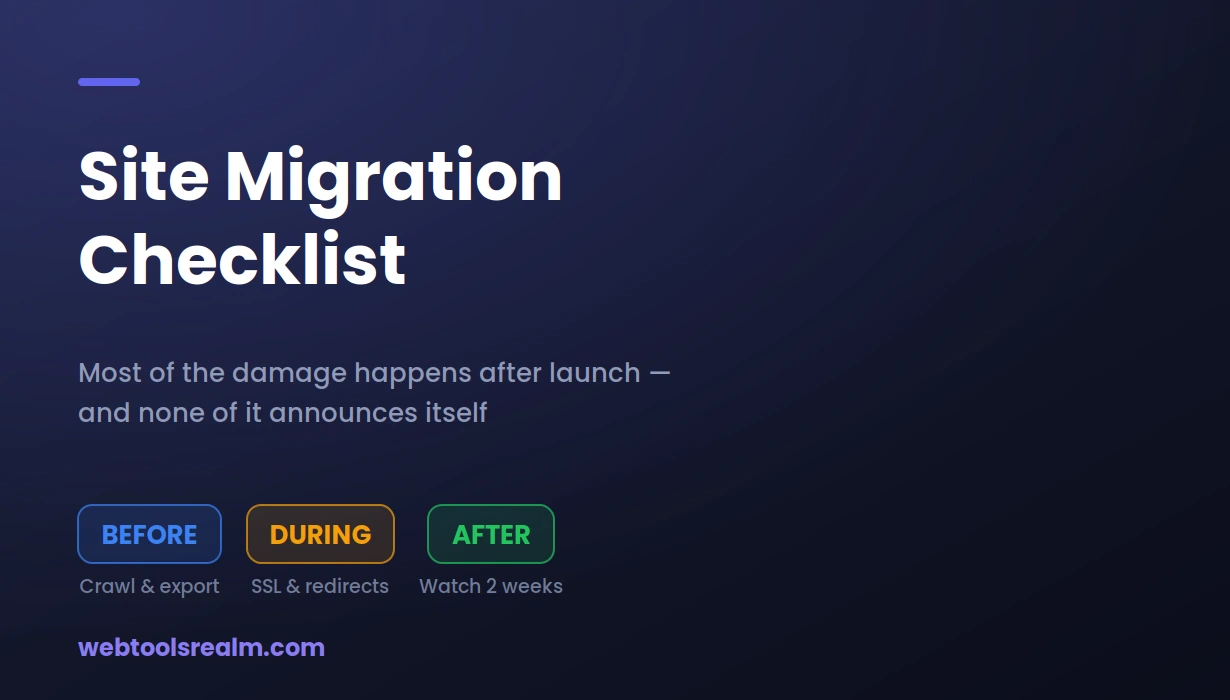
Site Migration Checklist: Every Check to Run Before and After
Most migration damage happens in the days after launch, not during it. A practical checklist for before, during and after — including the checks that only fail quietly and the leftovers that grep will not find.
Migrations rarely fail loudly. The site comes up, the homepage loads, everyone declares it done. The damage appears over the following weeks as traffic drifts down, and by then the cause is buried under a dozen changes made on the same day.
The reason is that most of what breaks in a migration breaks quietly. A redirect that chains through three hops still works. A page with a stale canonical still loads. An old brand name still sitting in a database field still renders. None of these announce themselves, and none are found by looking at the homepage.
This is a checklist for finding them before Google does.
Before You Migrate
1. Crawl and save the current site
Whatever tool you use, get a full list of every URL that currently exists, with its status code, title, and canonical. Save it as a file.
This is the single most valuable thing you can do, and it has to be done before the migration, because afterwards the old site is gone and you have nothing to compare against. Without it, "did we lose any pages" becomes unanswerable.
2. Export your current rankings and traffic
Pull the last three months from Search Console — queries, pages, impressions, clicks. Again, a file. After launch, you will want to know whether a drop is a real loss or normal fluctuation, and memory is not good enough for that.
3. Lower your DNS TTL in advance
If the migration involves a DNS change, lower the TTL to 300 seconds several days beforehand. This has to happen early to be of any use — resolvers that already cached the old record are working to the old TTL, so lowering it on migration day does nothing. The reasoning is covered in why DNS changes take time to appear.
4. Build the redirect map
Every old URL needs a destination. Not a bulk redirect to the homepage — a specific, relevant page for each one. Bulk homepage redirects are treated as soft 404s and pass nothing.
Map them as a spreadsheet: old URL, new URL, and a note where the match is imperfect.
5. Prepare the new environment fully before switching
If nameservers are changing, the DNS zone at the new host must exist and answer correctly before you point anything at it. Resolvers that pick up the change early will otherwise ask the new nameservers, get nothing, and cache that failure.
During the Migration
6. Verify SSL on the new host first
A migration that lands on a certificate error is worse than no migration. Confirm the certificate covers every hostname you serve, including www, and that the chain is complete. An SSL check from outside your network catches the chain problem your own browser will hide from you.
7. Test redirects before they go live where possible
Run a sample of your redirect map — the highest traffic URLs, the deepest pages, and a few edge cases with query strings or trailing slashes. A redirect checker shows the full chain, which is what you need. One hop to a 200 is the target.
8. Confirm the right redirect type
Permanent moves use 301. A 302 tells search engines the change is temporary and keeps the old URL indexed, which is rarely what you want after a migration. The difference and its consequences are covered in 301 vs 302 redirects.
9. Check robots.txt immediately
Staging sites are usually blocked from crawling. If that robots.txt travels to production, you have blocked your entire site on the day you most need it crawled. This is the most damaging single mistake in a migration, and it is trivially avoidable — read the live robots.txt as your first action after launch.
After Launch: The Same Day
10. Verify the site actually resolves for other people
Your machine is the least reliable place to check. Test from mobile data, and use an external status checker to confirm the site responds from outside your network.
During my own migration the new server was answering correctly for everyone while my own machine kept loading the old site for hours. I assumed I was waiting on propagation. It was a local DNS cache, and flushing it fixed instantly what I had been sitting through. Checking your own browser first is a reliable way to waste an afternoon.
11. Submit the new sitemap
Generate it, verify the URL count matches what you expect, then submit it in Search Console.
Check for duplicates before you submit. A sitemap that lists the same URL twice is not harmful in itself, but it is a signal your generation process has a bug, and that bug will produce worse problems later.
The mistake I made on my own sitemap was trusting grep -c to count occurrences. It counts matching lines, not matches — and my URL list was on a single line, so it reported 1 whether a slug appeared once or five times. I added an entry that was already there, created a duplicate, and could not see it in the count. Use grep -o "slug" file | wc -l instead if you are checking a list like this.
12. Spot-check headers on the new site
Confirm content-type, caching behaviour, and above all that no x-robots-tag: noindex has survived from staging. This one is invisible in the page source, so reading the HTML will not find it. The headers parser shows the full response.
13. Check compression is on
New server, new configuration. Verify HTML, CSS, and JavaScript separately, since compression is configured per file type and JavaScript is the one most often left out.
14. Confirm email still works
If DNS changed, MX records may have moved with it. Send a test message in both directions. Mail failures queue rather than bounce, so a broken MX record can look fine for two days and then produce a flood of failures. The records to check are covered here.
After Launch: The First Two Weeks
15. Hunt down the branding leftovers
If the migration involved a rename, search the codebase for the old name. Then search the rendered pages, because the two are not the same thing.
Grepping the code found nothing on my own site, and I concluded the rename was complete. It was not. The old name was still in a database settings field, feeding the meta description on one section, and it was also baked into the pixels of three featured images — where no text search will ever find it. Check the live HTML with curl and look at your images with your eyes.
A quick sweep across your main pages:
for u in / /blog /about /contact; do
  echo -n "$u: "
  curl -s "https://yoursite.com$u" | grep -ioc "oldbrandname"
done
16. Watch Search Console daily, not weekly
Coverage errors, crawl anomalies, and manual actions all appear here first. Two weeks of daily checks is proportionate after a migration; after that, weekly is fine.
Expect indexed page counts to fluctuate. A temporary dip as Google reprocesses the site is normal. A sustained decline over three weeks is not.
17. Compare against your pre-migration crawl
This is why you saved it. Crawl the new site and compare URL by URL: is every old page either present or correctly redirected? Anything in the old list that now returns 404 with no redirect is a page you have lost.
18. Keep the old redirects for at least a year
The common instinct is to remove redirects once traffic looks normal. Do not. External links pointing at old URLs keep arriving for years, and those redirects are the only thing carrying that value across. Removing them after three months quietly discards it.
What to Expect
Some traffic movement after a migration is normal. Google has to recrawl, reprocess and reassess a large number of URLs, and that takes weeks rather than days.
A reasonable expectation is a modest dip followed by recovery within four to eight weeks. What is not normal is a sharp drop that does not recover, or a steady decline that continues past a month. Those indicate something structural — blocked crawling, broken redirects, or lost pages — rather than the migration itself.
The pre-migration crawl and the Search Console export exist precisely so you can tell the difference between the two, instead of guessing.
Frequently Asked Questions
How long does it take to recover rankings after a migration?
Typically four to eight weeks for a well-executed migration, longer for large sites. Some fluctuation during that period is expected. A decline that continues past a month usually means something is broken rather than still settling.
Can I redirect all old URLs to the homepage?
You can, but it will not work. Google treats bulk redirects to an unrelated page as soft 404s, and they pass no value. Each old URL needs a relevant destination, and where no equivalent exists, a 404 or 410 is more honest than a misleading redirect.
Should I migrate content and design at the same time?
Ideally not. Changing the domain, the URL structure, and the design together means that if traffic drops, you cannot tell which change caused it. Separating them by a few weeks makes the cause identifiable.
How long should I keep the old redirects?
At least a year, and preferably permanently for high-value URLs. External links pointing to old addresses continue arriving long after you stop thinking about them.
Do I need to resubmit my sitemap?
Submit the new one once. Google refetches sitemaps on its own schedule afterwards, so repeated resubmission achieves nothing. For individual important pages, Request Indexing in Search Console is faster.
The Short Version
Crawl and export before you touch anything, because the comparison is only possible if you have the earlier data. After launch, check robots.txt first, redirects second, and headers third. Then keep looking for two weeks — the failures that matter in a migration are the ones that do not announce themselves.
Written by Baleeghuddin Shaikh, an SEO consultant with 8 years of experience in technical SEO and site diagnostics.
Contact
Missing something?
Feel free to request missing tools or give some feedback using our contact form.
Contact Us